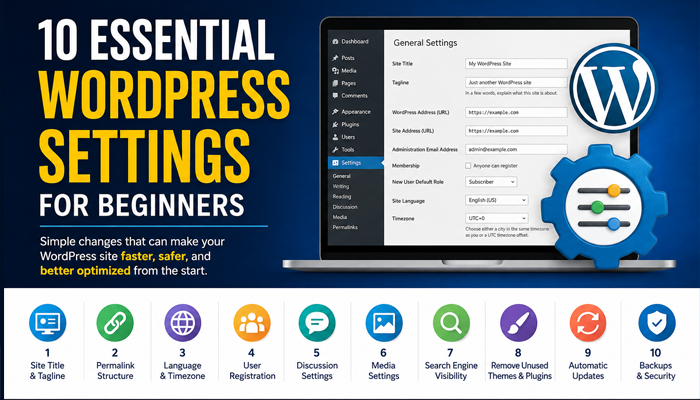
Discover 10 essential WordPress settings every beginner should configure after installing WordPress. From permalinks and search visibility to security, updates, comments, images, and backups, these simple changes can help you build a faster, safer, and better optimized WordPress website from the start.
Why WordPress Default Settings Need Your Attention
WordPress works immediately after installation, but the default configuration is not ideal for every website. Several important options affect SEO, security, comments, URLs, media files, and user accounts. Spending a few minutes reviewing them can prevent problems later.
You do not need advanced technical knowledge. Most of the settings below are available directly from the WordPress Dashboard. Before changing an established website, however, create a backup and check whether plugins or custom code depend on the current configuration.
1. Change Your WordPress Site Title and Tagline
Go to Settings → General and check the Site Title and Tagline. Your title should clearly identify your website, while the tagline should briefly explain what visitors can expect to find.
Avoid leaving the default “Just another WordPress site” tagline. Even when your theme does not visibly display it, some themes, plugins, feeds, or integrations may still use this information. Keep the tagline short, relevant, and natural rather than filling it with keywords.
2. Configure the Correct WordPress Permalink Structure
Open Settings → Permalinks and review your URL structure. For most blogs and informational websites, the Post name option provides clean URLs such as example.com/wordpress-security-guide/.
Clean URLs are easier for visitors to understand and can make site organization clearer. If your website already has indexed content, do not casually change its permalink structure. Changing existing URLs without proper redirects can create broken links and SEO problems.
3. Set Your Site Language, Timezone, and Date Format
Navigate to Settings → General and select the correct site language and timezone. WordPress uses these settings when scheduling posts, displaying dates, running scheduled events, and performing other time-dependent tasks.
Choosing a city that matches your timezone is often preferable to selecting a fixed UTC offset because regional timezone settings can account for daylight-saving changes. You can also select the date and time formats that best suit your audience.
4. Review WordPress User Registration
Under Settings → General, you will find the Membership option. If you do not need public account registration, leave “Anyone can register” disabled.
If registration is necessary, carefully check the New User Default Role. Subscriber is normally the safest basic role for ordinary registered users. Never use Administrator as the default registration role because administrators receive extensive control over a WordPress website.
5. Configure WordPress Comments Properly
Visit Settings → Discussion to decide how comments should work. You can require commenters to provide basic information, manually approve comments, moderate suspicious submissions, or disable comments where they are unnecessary.
Popular websites can attract large amounts of automated comment spam. Moderation rules and a reputable anti-spam solution can reduce this problem. Avoid making moderation excessively restrictive if genuine discussion is an important part of your website.
6. Review WordPress Media Settings
WordPress can automatically generate several image sizes whenever you upload an image. You can review the default dimensions under Settings → Media.
These generated versions help WordPress serve appropriately sized images in different contexts. However, themes and plugins can register additional sizes. Avoid changing image dimensions simply to reduce storage unless you understand how your theme uses thumbnails and responsive images.
7. Check Search Engine Visibility
Go to Settings → Reading and look for Search engine visibility. A public website that you want Google and other search engines to discover should normally have “Discourage search engines from indexing this site” unchecked.
This option is particularly important after moving a staging website into production. Developers sometimes discourage indexing while building a site and then forget to change the setting when the website goes live. Remember that this WordPress option is a request to search engines, not an absolute access-control mechanism.
8. Remove Plugins and Themes You Do Not Need
Unused plugins increase maintenance requirements and can become a security concern if you forget to update them. Deactivate and delete plugins you no longer need rather than keeping a large collection of inactive extensions.
The same principle applies to themes, although keeping one current default WordPress theme can be useful for troubleshooting. Before deleting anything, confirm that your active theme does not depend on it. Never delete the parent theme when your active website uses a child theme.
9. Configure WordPress Automatic Updates Carefully
WordPress supports automatic updates for Core and can also provide automatic updates for themes and plugins. These features can reduce the amount of time your website remains exposed to vulnerabilities that have already been fixed.
However, automatic updates are not a replacement for backups and monitoring. A plugin or theme update can occasionally introduce compatibility problems. Important websites should have reliable backups and a simple recovery plan before extensive automatic updating is enabled.
10. Create a Reliable WordPress Backup Strategy
Backups are not controlled entirely by one standard WordPress setting, but they should be part of every new website setup. Your backup should include both the WordPress database and important files.
Ideally, keep at least one backup copy outside the same server that hosts your website. A backup is only useful when it can actually be restored, so periodically verify your backup system and understand the restoration procedure before an emergency occurs.
Important WordPress Security Settings to Review
Strong passwords, limited administrator accounts, regular updates, HTTPS, secure hosting, and reliable backups provide a much stronger foundation than installing dozens of security tools without understanding them. Keep administrator access limited to people who genuinely need it.
WordPress security also depends on the server, themes, plugins, and administrator practices. Review your website regularly and remove abandoned software. Keeping the installation simple usually makes maintenance easier.
WordPress Settings You Should Avoid Changing Without a Reason
Some WordPress settings appear simple but can have significant consequences. Changing your site URL, WordPress address, permalink structure, database configuration, or user roles on an established site requires extra care.
Always create a backup before making structural changes. If your website already receives search traffic, check whether a change affects existing URLs, canonical addresses, redirects, or internal links before applying it.
A Simple WordPress Setup Checklist
After installing WordPress, check the site title, tagline, language, timezone, permalinks, registration options, comments, media configuration, and search visibility. Then remove unnecessary plugins and themes, configure updates, and establish reliable backups.
These steps take relatively little time, yet they create a much cleaner starting point. You can then focus on content, performance, SEO, accessibility, and security without having to correct avoidable configuration mistakes later.
Frequently Asked Questions
What WordPress settings should I change first?
Start with the site title, tagline, timezone, permalinks, search engine visibility, comments, and user registration. These settings affect some of the most important parts of a new WordPress installation.
What is the best WordPress permalink structure?
For many blogs and informational websites, Post name provides a simple and readable URL structure. Existing websites should be cautious about changing permalink structures because old URLs may require redirects.
Should I allow anyone to register on WordPress?
Only enable public registration when your website actually needs user accounts. If registration is unnecessary, disabling it reduces unwanted registrations and simplifies account management.
What should the default WordPress user role be?
For ordinary public registrations, Subscriber is generally the appropriate basic role. Never make Administrator the default role for public registration.
Should I enable automatic WordPress updates?
Automatic updates can improve maintenance and security, particularly for important fixes. You should still maintain reliable backups and periodically check your website for compatibility problems.
Should WordPress search engine visibility be enabled?
For a public website intended to appear in search results, the option to discourage search engines from indexing the site should normally be unchecked. Development and staging websites may require different indexing controls.
Should I delete inactive WordPress plugins?
If you no longer need an inactive plugin, deleting it is generally better than leaving abandoned software installed. Make sure the plugin is genuinely unnecessary before removal.
Can I delete unused WordPress themes?
Yes, but keeping one current default WordPress theme can help with troubleshooting. Never remove a parent theme required by your active child theme.
How often should I back up WordPress?
Backup frequency depends on how frequently your website changes. A frequently updated blog, store, or membership website generally needs more frequent backups than a mostly static website.
Are default WordPress settings secure?
WordPress provides a solid starting point, but website security depends on much more than default settings. Updates, passwords, user permissions, hosting configuration, themes, plugins, HTTPS, and backups all matter.
Build a Better WordPress Foundation
Configuring WordPress correctly from the beginning can save hours of troubleshooting later. Start with clean URLs, correct regional settings, sensible account permissions, appropriate indexing controls, and a reliable backup strategy.
You do not need to change every WordPress option. Focus on settings that have a clear purpose for your website, document important changes, and avoid unnecessary modifications to a working production site.
Disclaimer
This article provides general WordPress configuration and website-management information for educational purposes. Settings can behave differently depending on your hosting environment, WordPress version, theme, plugins, and custom code. Create a backup before making significant changes to a production website.
The recommendations are based on standard WordPress functionality and established website-management practices. For security, legal, business, or server-specific decisions, consult the appropriate professional or your hosting provider when necessary.
By using Tips4WP.com, you acknowledge that you have read, understood, and agreed to this disclaimer.
Tags: WordPress settings, WordPress beginners, WordPress tutorial, WordPress setup, WordPress security, WordPress SEO, WordPress permalinks, WordPress optimization, WordPress backups, WordPress configuration
Hashtags: #WordPress, #WordPressTips, #WordPressTutorial, #WordPressBeginner, #WordPressSEO, #WordPressSecurity, #WebDevelopment, #BloggingTips, #WebsiteOptimization, #WordPressGuide
Sources and References
For the most accurate technical details, consult the official WordPress documentation and WordPress administration documentation. WordPress settings and available options can change between releases, so current documentation should take priority when a setting differs from the examples described here.
Secondary Sources and Testimonials
Practical recommendations in this guide reflect common WordPress administration practices used when configuring new websites. Hosting environments, security policies, caching systems, themes, and plugins can introduce additional requirements, so each installation should be evaluated individually.